How To Order
How To Order
Add some item(s) into your shopping cart
Select the type/color/flavor and warehouse and QTY if necessary. Then click on “Add to Cart” or “Buy Now”.
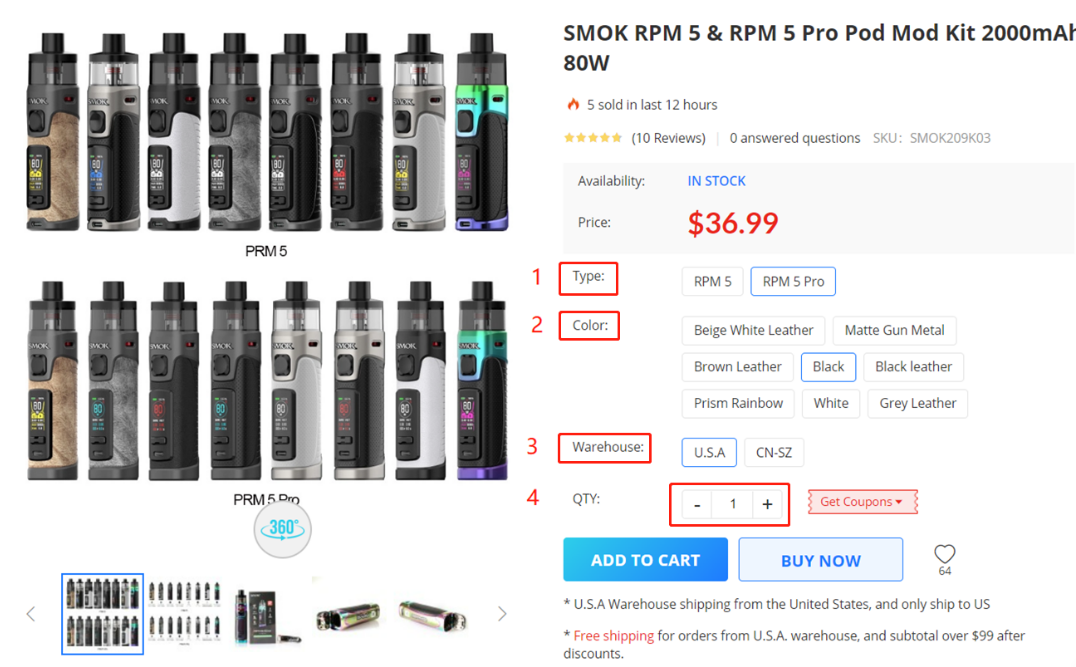
If you want to purchase several items, please click on “Add to Cart” so you can add more items to your shopping cart.
If you just want to purchase one item, please click on “Buy Now” for a fast purchase. Alternatively you can also click on “Add to Cart”.
CN-SZ Warehouse shipping from ShenZhen, China
U.S.A Warehouse shipping from the United States, and only ship to USA
US-02 Warehouse shipping from the United States, and only ship to USA
Only need to select one warehouse for each item before “Add to Cart”.
Check out when item selection is completed.
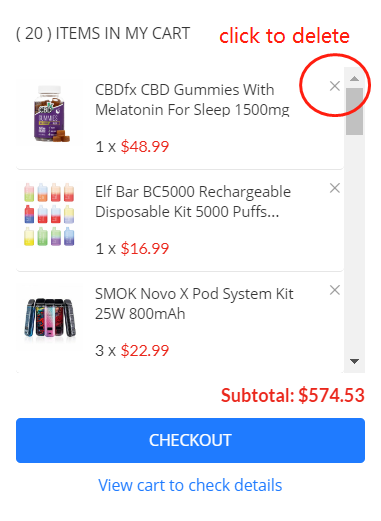
Click on “View cart to check details” if you want to review the item(s) selected and make some modifications if necessary. Please note you can directly delete some item(s) here by clicking the “X” at the right side of each item.
Click on “CHECKOUT” if you confirm the item(s) in cart and are ready to place the order.
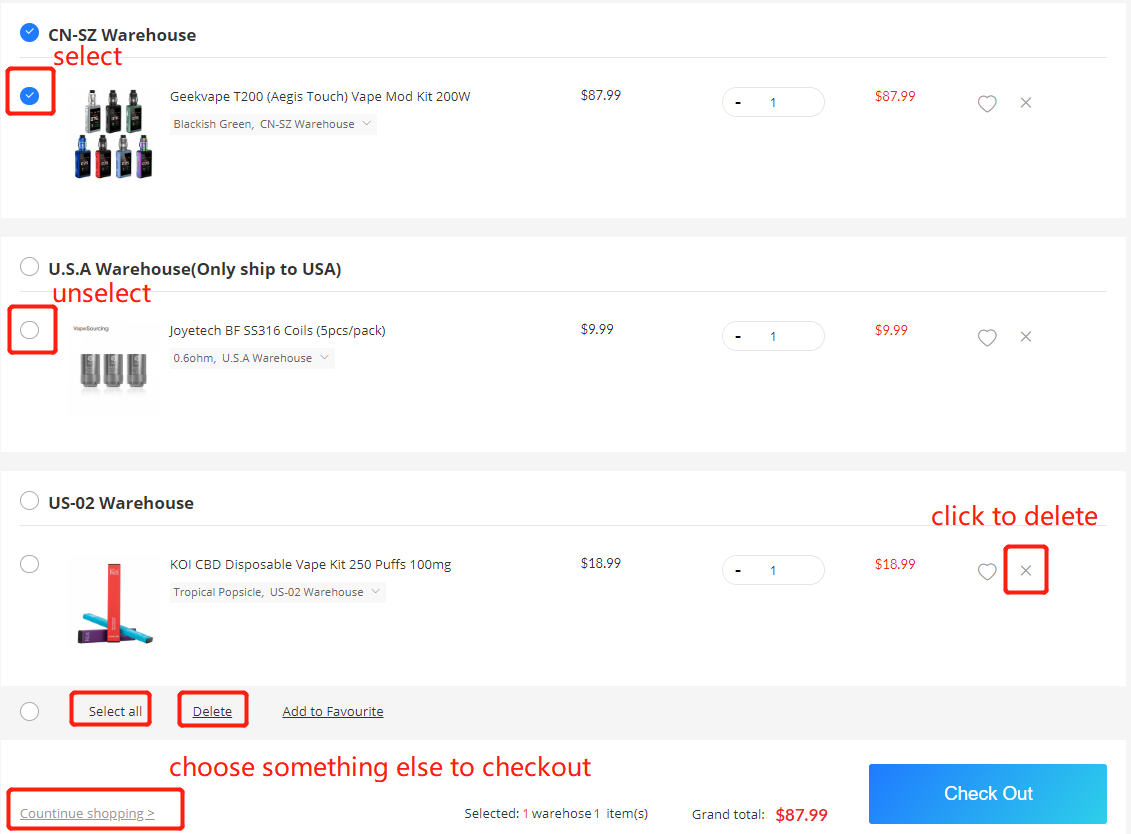
If you want to delete some item(s) in your order on this page, you can either click on the “X” at the right side of the item or do not select it before you click on “Check Out”. If you change your mind to exchange the selected item(s) on this page, please delete the item(s) and click on “Continue shopping” to return to Step 1.
Log in your VapeOrdr account.
Choose Login if you already have an account on our site.
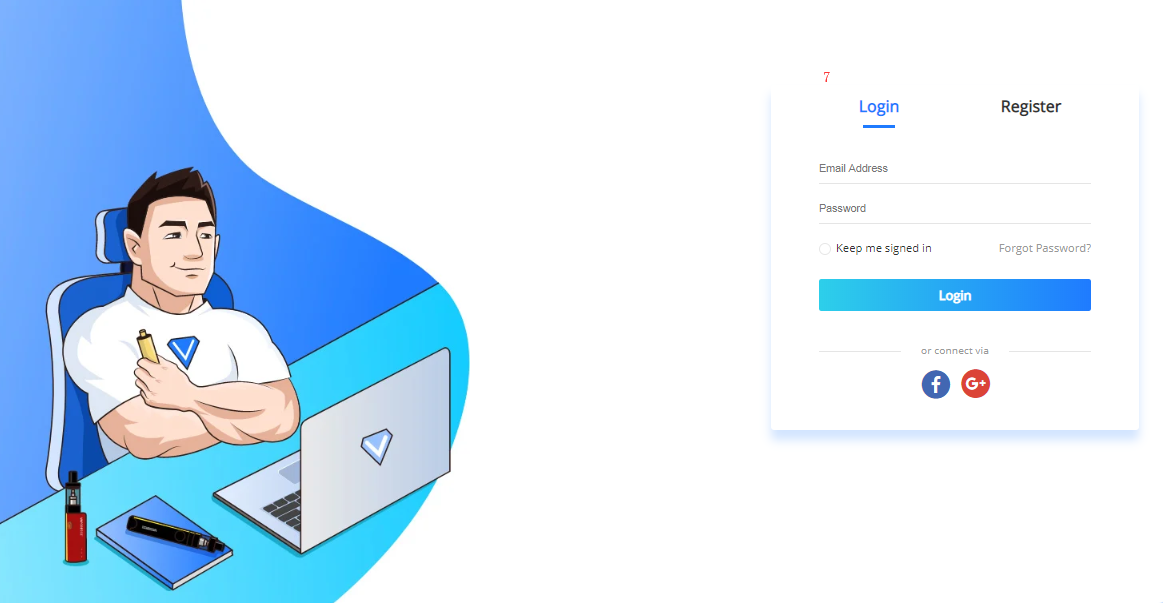
Choose Register (if you do not have an account on our website) to register with your available email account.
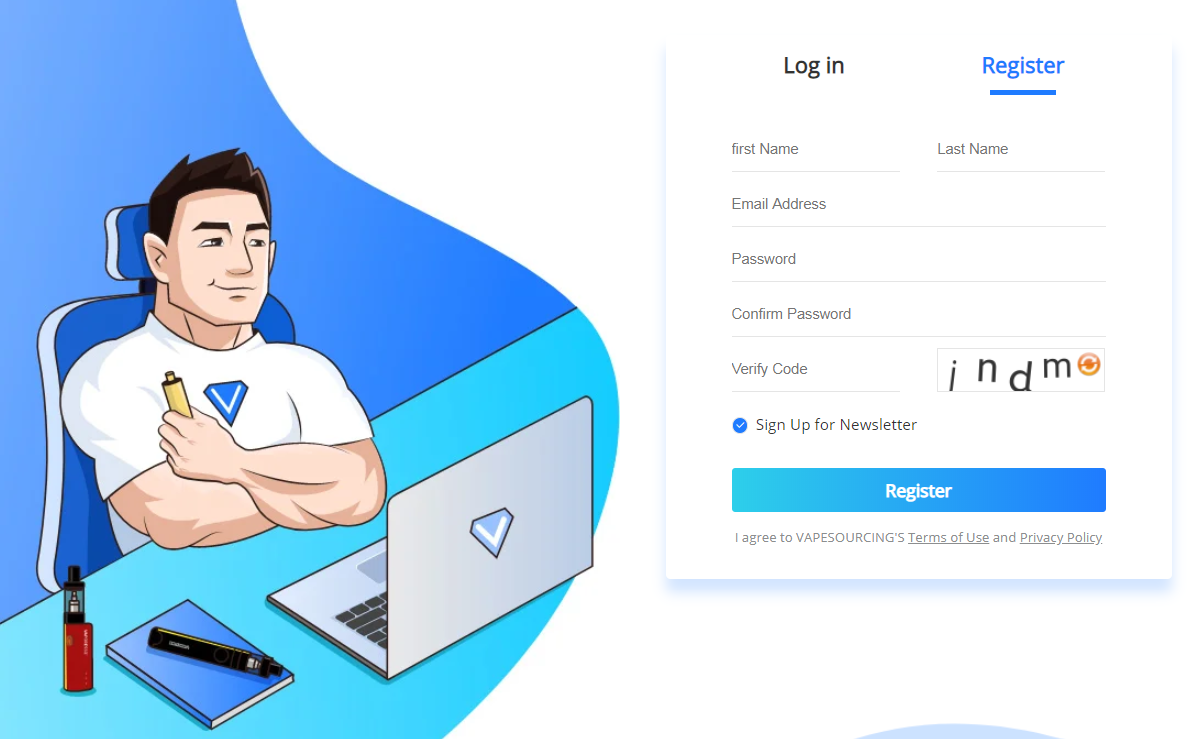
Please follow above Step 2 after logging into your account or registering an account. Click on “View cart to check details” to review the item(s) selected.
Complete shipping and billing information.
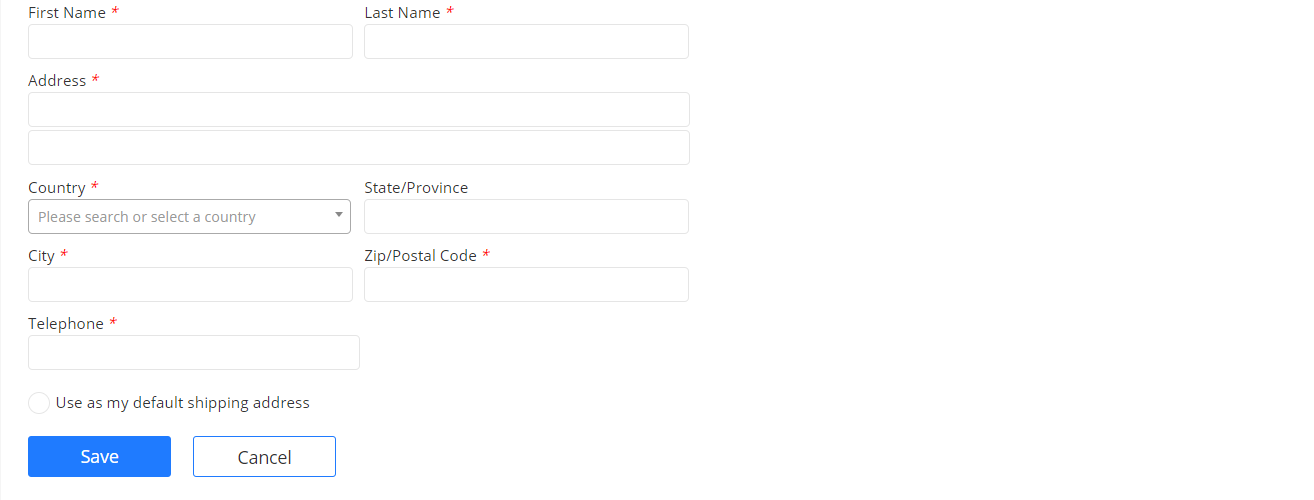
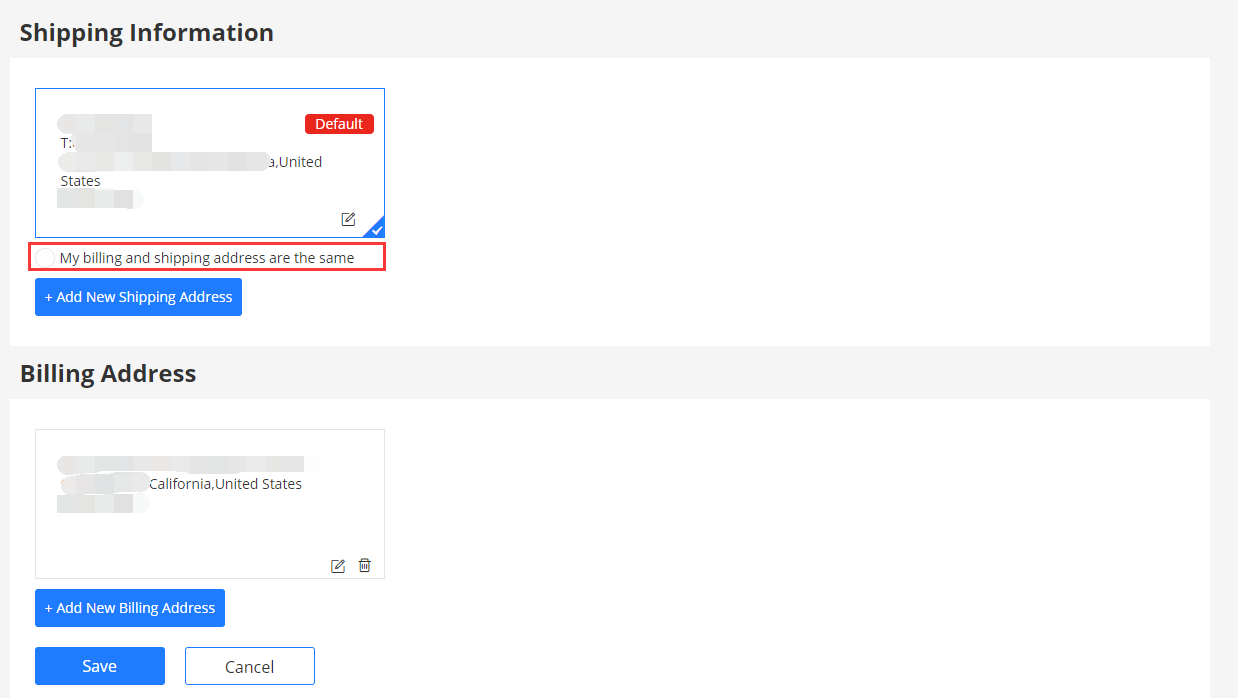
Fill in the shipping address.
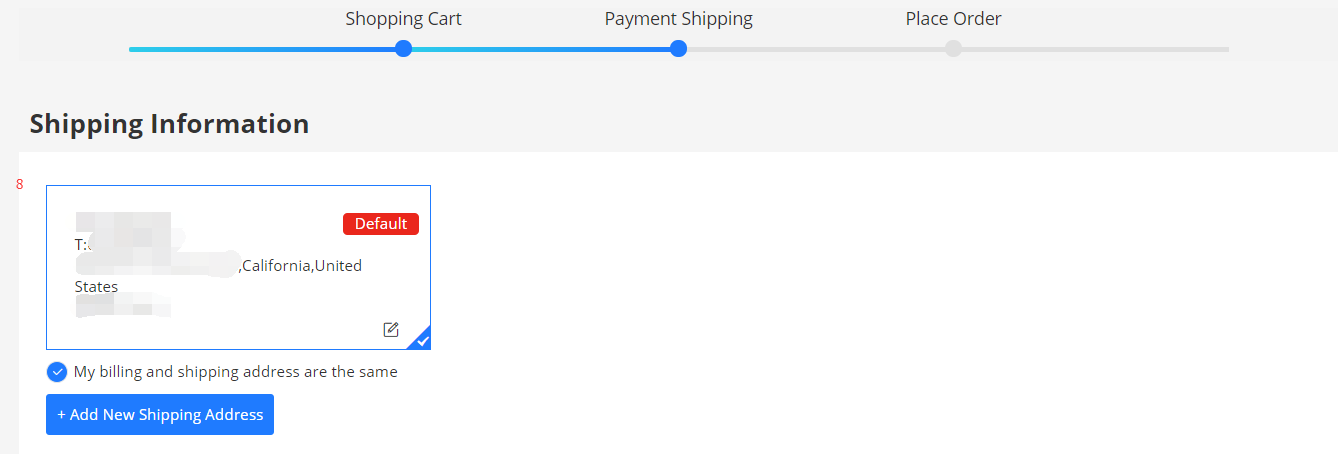
Please note you can either use the “Default address” in your account or “Add New Shipping Address” if you have a new delivery address.
If your billing address is the same as the shipping address, please select “My billing and shipping address are the same”.
If your billing address is different, please do not select it and choose your correct billing address or “Add New Billing Address”.
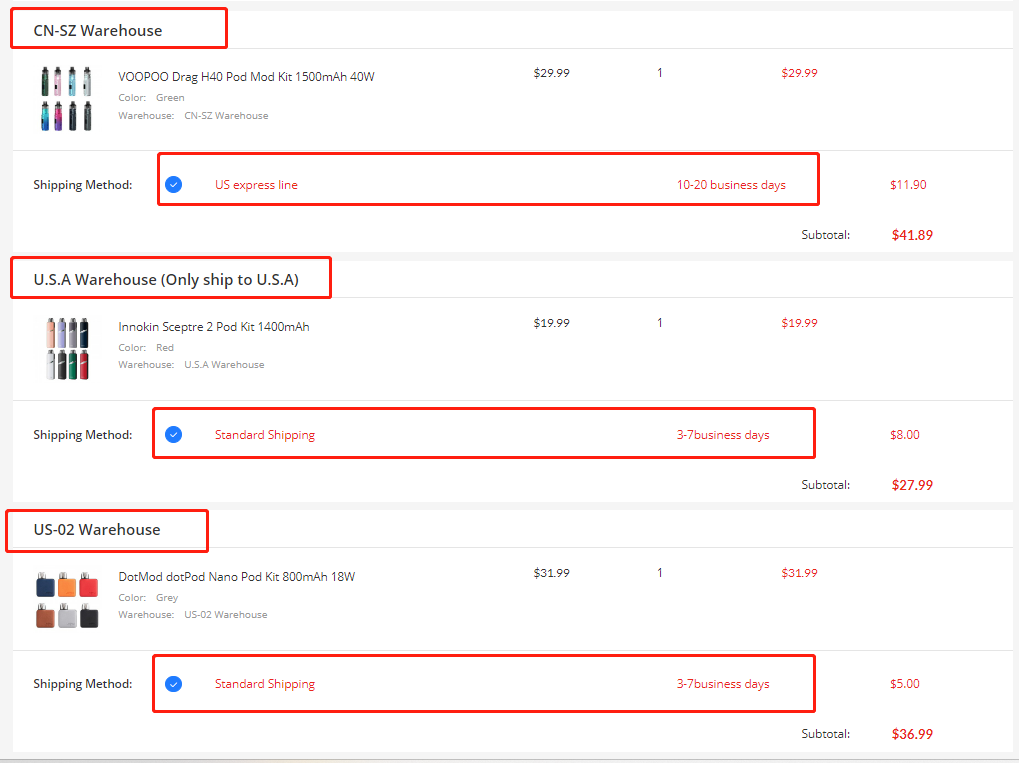
Choose one shipping method option for each warehouse item.
* If you choose two (three) warehouse products in one order, you need to pay the shipping fee for two (three) warehouse shipments.
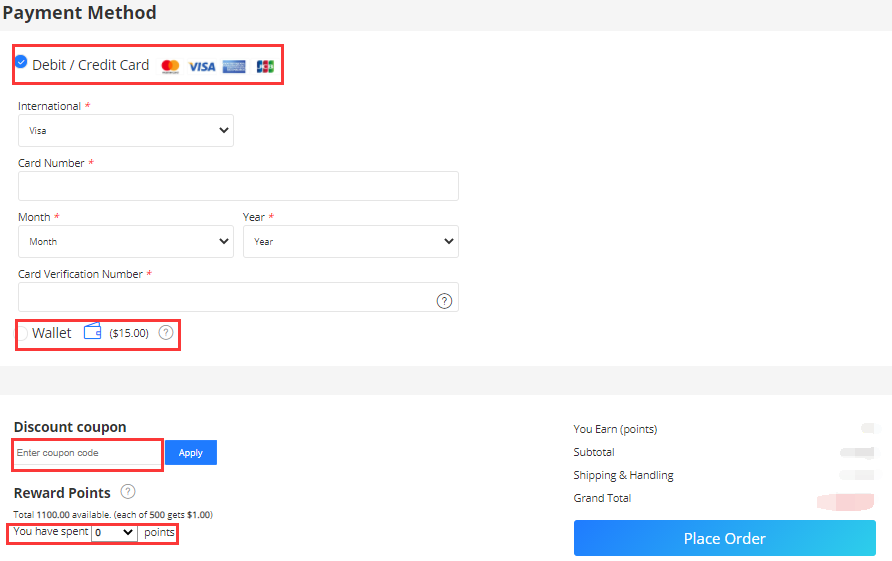
Choosing payment methods from all the available payment methods displayed. Wallet and Debit/Credit Card can be used together or separately during payment. If you have coupon code or reward points can be used, please fill in for some discounts.
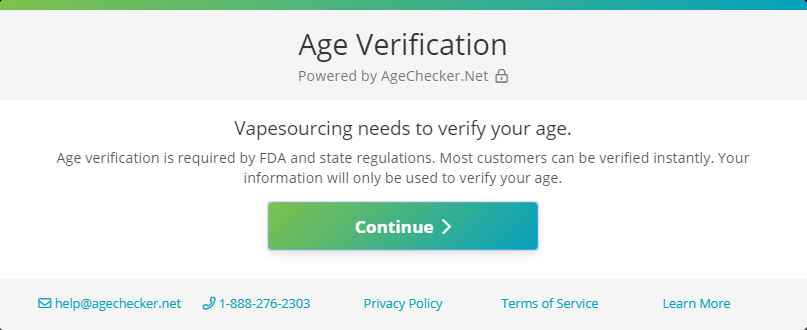
Age Verification
If your delivery address is in USA, please help to do Age Verification before payment. Please fellow guidance step by step on the page to complete this verification.